Instructions for defining mandate themes
The right to act on behalf of another person may be based on:
- law (the guardian’s right to act on behalf of a dependent minor)
- an order issued by an authority (for example, the Digital and Population Data Services Agency confirms someone’s trustee)
- a decision of an authority based on an application (for example, the Finnish Patent and Registration Office registers a company and its signatories in the Trade Register)
- mutual trust = mandate (for example, to authorise another person or organisation to act on a person’s or organisation’s behalf in a specific matter).
What is a mandate theme?
When you grant a mandate to another party in Suomi.fi e-Authorizations, its competence is limited by a mandate theme. The mandate theme must comply with laws and agreements. In practice, the mandate theme illustrates what granting the mandate in question means to the assignor and what the assignee’s rights are.
Use of a mandate theme
The mandate theme is not operator-specific or system-dependent. Several parties can use one mandate theme in different services. Therefore, the mandate theme is always defined in a general manner.
Once the mandate theme has been activated, its contents cannot be changed.
If the mandate theme is only used in one e-service, it can be hidden from view. The possibility of its removal is always assessed together with the Digital and Population Data Services Agency. When a mandate theme is hidden from view, it can no longer be used for mandates, but the mandates already granted remain valid.
Definition of the mandate theme
The description of the mandate indicates the maximum competence of the mandate. The mandate can also be utilised in part so that the e-service instructions describe what areas of competence are utilised in the e-service.
The definition of a new mandate theme should begin with a description of the competence. In the description of competence:
- always use the word mandate, even if the name of the object to be described does not include the word mandate but the word consent or permission, for example
- always refer to the assignor and the assignee (and not, for example, a service provider, an individual or a company)
- do not mention the name of the e-service, its provider or the system used (required descriptions are created in the Suomi.fi Finnish Service Catalogue, in Finnish: https://palveluhallinta.suomi.fi/en/tuki/artikkelit/5cac5a6b4705ea1b95c25216)
- only describe what the mandate can be used for.
The name of the mandate theme must always refer to an action, for example, registration of vehicles or disclosure of pay data.
Accuracy of the mandate theme
Three different perspectives should be considered when defining the mandate theme:
- The assignor’s perspective: an overly general level may endanger the assignor’s legal protection.
- The assignee’s perspective: it is easy to understand the matter in which you can act on behalf of another person from the description of the competence.
- The authorisation register user’s and the e-service’s perspective: is it about acting on behalf of another party, for which a mandate must be granted, or can the matter be resolved with the system’s access rights?
Introduction of a mandate theme
1. Format the mandate theme according to the instructions.
2. Submit the mandate theme proposal to the deployment team of the Digital and Population Data Services Agency (valtuudet-kayttoonotot@dvv.fi). Write “New mandate theme / name of an e-service” as the subject of your message. Include the following in your message:
- the name of the mandate theme
- a description of the competences
- type of principal (person and/or organisation).
You can also describe in free form who is acting on behalf of whom and in what matters. The descriptions help the Digital and Population Data Services Agency working group on mandate themes to understand what the mandate theme is about.
3. The proposals will be discussed in a working group that will propose corrections if necessary and return the proposal to your organisation for review and approval.
4. Once the proposal has been approved, the Digital and Population Data Services Agency will translate the mandate theme into Swedish and English. The translations will be submitted to your organisation for review.
5. The Digital and Population Data Services Agency transfers the mandate theme to the testing environment and grants access to it in your e-service for testing.
6. Once the translations have been approved, the Digital and Population Data Services Agency will transfer the mandate theme to the production environment immediately with the next possible version update. If the publication needs to be delayed, it must be agreed upon separately with the Digital and Population Data Services Agency.
7. After the publication, the Digital and Population Data Services Agency will grant you access to the mandate theme in your e-services in the production environment. If the e-service is not yet in production, access will be granted later.
Specifier of the mandate theme
A specifier restricting the mandate theme may be specified for it. You can enter any string with a maximum length of 200 characters as the specifier value. The name and description of the specifier are displayed to the end user when a mandate is granted. We need the aforementioned information, i.e., the name and description of the specifier, from you. Also indicate in which mandate theme and e-service you would like to use the specifier. After receiving this information, we can implement the specifier for testing in the test environment. In our testing environment, there are also test mandates with specifiers if you want to start testing the utilisation of the specifier immediately. You can tell us in which e-service you want to test a mandate with a specifier (WebAPI client ID or Data Exchange Layer identifier).
The use of specifiers should be carefully considered, as using a specifier makes granting mandates slightly more difficult. In practice, the assignor must check the possible values of the specifier in the e-service instructions, as it is not possible to add checks to the inputs of the specifiers. The use of the specifier should be tested carefully, as it affects the response messages of the checking interface.
If a specifier is specified for a mandate code, the assignor can enter any string and specifier variable name, and the specifier name and the value entered as the specifier are added to the authorisation query’s response message as key-value pairs after the mandate theme’s technical identifier (URI).
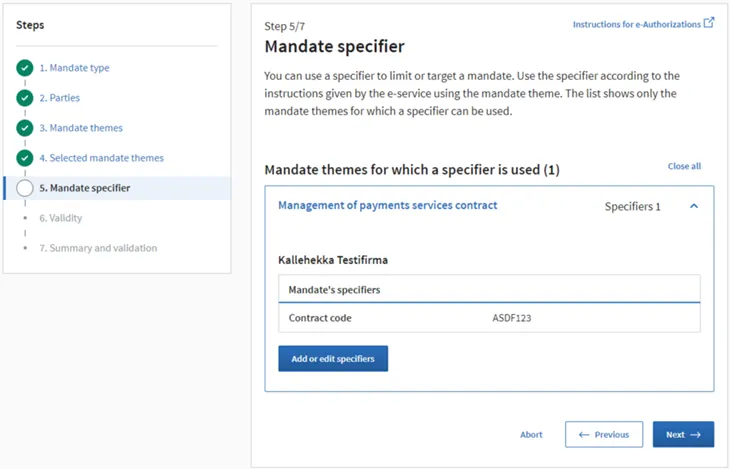
The specifiers are recorded in the national Authorisation register in connection with the mandate when granting mandates in Suomi.fi e-Authorizations, and it remains with the mandate for as long as the mandate is valid. Here is an example of an authorisation query’s response message (WebAPI connection), in which the agent has “The Managing a Payment Transaction Service Agreement” mandate from Lehtopojat Oy and the assignor has entered “ASDF123” as the value of the specifier named “Sopimustunnus”:
[{"name":"Lehtopojat Oy","identifier":"2136766-1","complete":true,"roles":["http://valtuusrekisteri.suomi.fi/maksuliikepalvelusopimuksen_hallinnointi?sopimustunnus=ASDF123"]}]
Entering a specifier for a mandate
Select the mandate type, parties and mandate theme. Then select “Enable a mandate specifier”. Note: a specifier can only be entered for mandate themes for which a specifier has been specified.
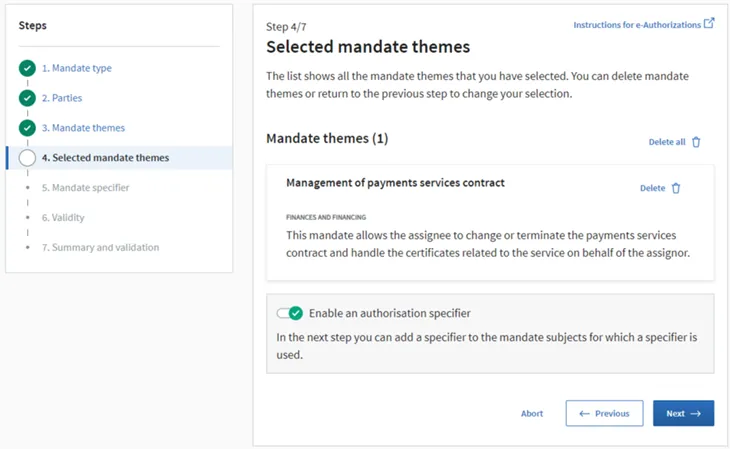
Enter the value of the specifier and select Next → and confirm the mandate.