
API key user guide (FSC API version 12)
Beta – content under developedAPI key in API version 12
- The API key will be in use from version 12 of the FSC API onwards in both the data search (OUT) and import (IN) APIs.
- The API key will be environment-specific, and it will need to be requested separately for each integration to be implemented.
The Digital and Population Data Services Agency needs the details of the integration you have implemented and the contact persons so that we can notify you of matters affecting your integration. Providing these details is a requirement for obtaining an API key.
Requesting, managing and using an API key
The API key is created and managed via FSC’s API key management interface.
- The API key is always ordered by the organisation commissioning the integration, not the IT supplier. The commissioning organisation creates and manages the API key and sends it to the IT provider. If the commissioning organisation has more than one integration, separate API keys should be requested for each of them.
- When creating a new identifier, please enter as your user id the e-mail address that you wish to use in the service to identify yourself and manage the API key.
- Please note that, going forward, only this e-mail address can be used to manage the API key.
- We recommend that you use a shared organisational email address that is not associated with any particular person.
Log in to the service
- Access the service via either the production environment’s API key management interfaceOpens in a new window. or the customer test environment’s API key management interfaceOpens in a new window..
- Enter your chosen e-mail address.
- We will send a confirmation code by e-mail.
- In the API key management interface, enter the confirmation code that you received.
Enter the commissioning organisation's details
- Details of the organisation
- Details of the organisation's contact person
Create and send an integration-specific API key
You can create several (up to 10) API keys for different integrations.
- Select Create a new API key.
- Fill in the details of the integration and the IT provider implementing it (if different from your organisation).
- Create an API key.
- Copy the API key (see the image below) and deliver it via encrypted e-mail or other secure method to your IT provider.
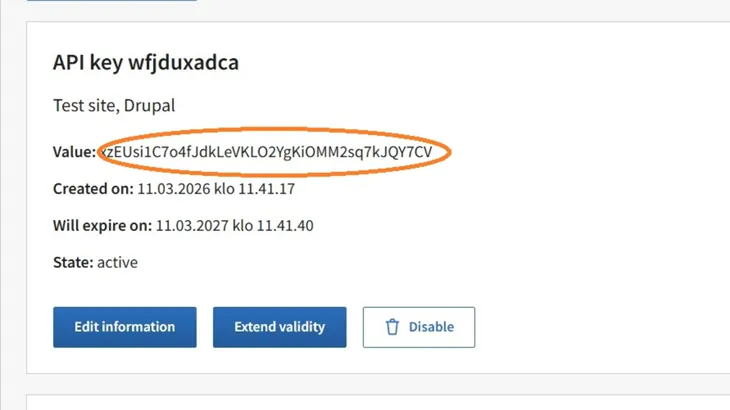
The API key will be valid for one year from creation, and its validity can be extended for one year at a time.
API key management
- You can create a new API key.
- You can extend the validity of your chosen API key (for up to a year from the extension date).
- You can disable your chosen API key.
Please note that
- API keys are integration-specific, and the maximum number allowed is 10.
What to do if the e-mail address used for creating the API is no longer enabled?
- Create a new API key for the organisation using a new e-mail address.
- Contact ptv-tuki@dvv.fi to deactivate the old API key. While the API key will be disabled after a year at the latest, it is safer to request the API to be disabled earlier and start using a new API key.
Link to customer test environment | Description |
|---|---|
The customer test environment's API key management interface Opens in a new window. | Request and manage an API key |
The customer test environment’s API documentation Opens in a new window. | API version documentation (Scalar) |
Technical address of API (with an API key): https://api-gw.palvelutietovaranto.trn.suomi.fi | Use for programmatic interface calls with an API key (e.g. curl). |
Link to production environment (beta version) | Description |
|---|---|
The production environment's API key management interface Opens in a new window. | Request and manage an API key |
The production environment’s API documentation Opens in a new window. | API version documentation (Scalar) |
Technical address of API: https://api-gw.palvelutietovaranto.suomi.fi | Use for programmatic interface calls with an API key (e.g. curl). Note! The search API of API version 12 is in production as a beta version. |
The API key identifies the integration, and it is recommended that it be treated as confidential information. The API key should be stored and used in such a way that it is not visible to end users or otherwise easily accessible.
Use x-api-key to add the API key to the HTTP headers of API calls.
Example: using an API key in the customer test environment (curl)
curl 'https://api-gw.palvelutietovaranto.trn.suomi.fi/api/v12/municipality-codes?page=1&pageSize=10' -H 'x-api-key: insert-api-key-here'
Example: using an API key in API documentation (scalar) calls
We recommend activating the API key on the main level, as this will automatically include it in individual API calls (see the image below):
- Go to the top of the API documentation (scalar)
- Select Authentication: apiKeyHeader
- Copy your API key value in: Value
-d720f40441ef65ca8cbd8f00fbd2994c.WEBP)