
Removing Certificates from the Security Server
This article explains how you can remove certificates via the security server’s management user interface.
Note! If the security server is in use, certificate removal must not begin until the new certificates have been installed. This ensures that replacing certificates does not interrupt the organisation’s services, as the security server remains operational.
Instructions for renewing certificates can be found in the article Renewing soon-to-expire certificates on the security server.
Follow the instructions below to remove the certificates.
Removing certificates when using X-Road version 7.4 or later
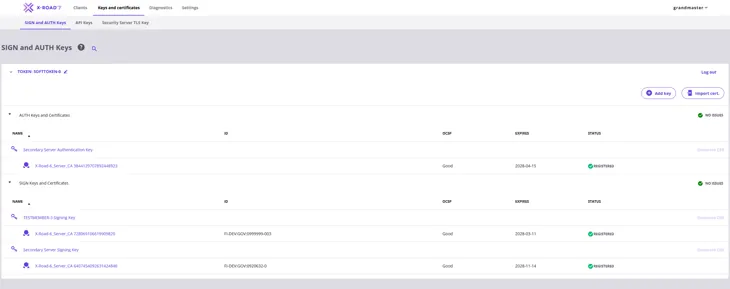
1. Remove old certificates only when the OCSP response is Good and Status is Registered.
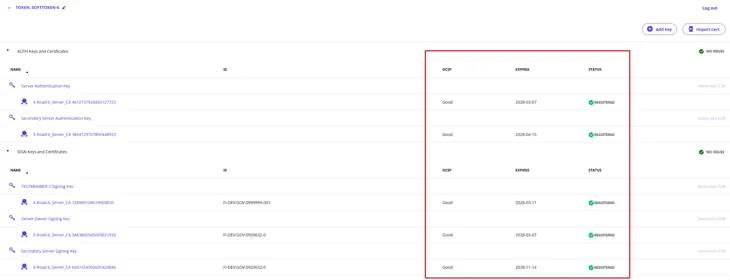
2. Select the signing certificate to remove by clicking its identifier.
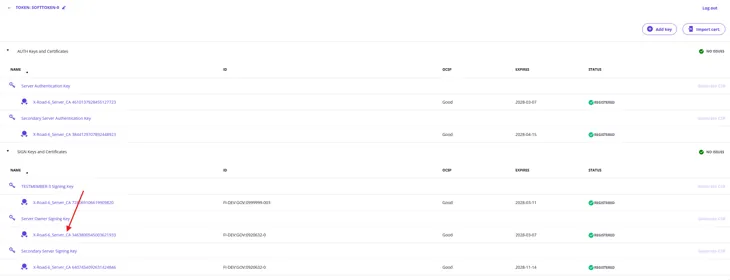
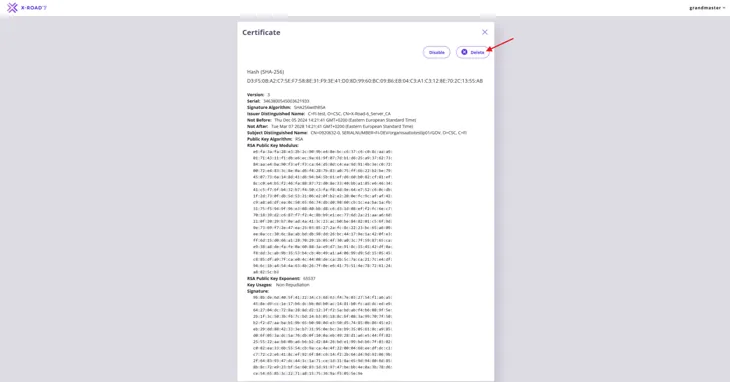
3. Make sure that the correct certificate is selected and start removal by selecting Delete.
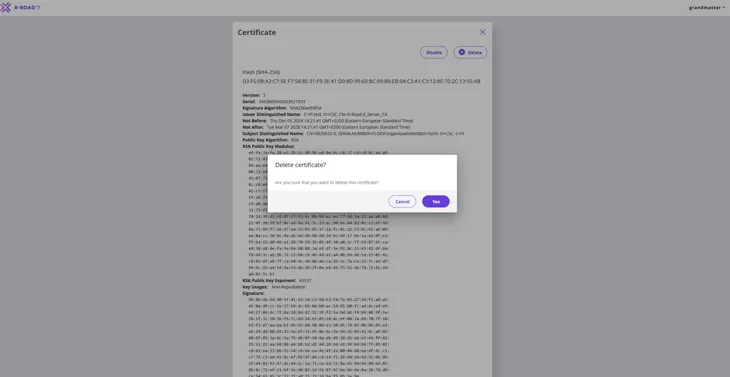
4. Confirm deletion by selecting Yes.
5. Next, remove the signing key of the old certificate. First, select the signing key to remove.
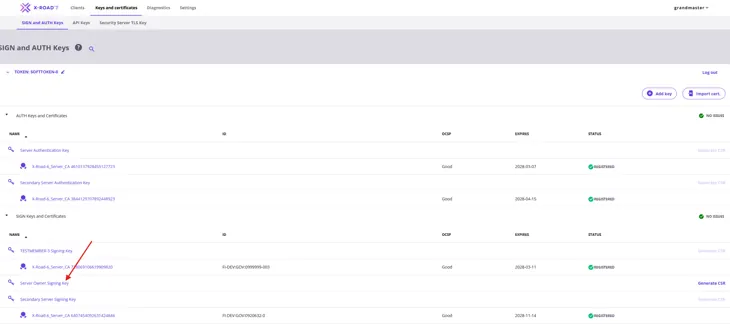
6. Make sure that the correct key is selected and start removal by selecting Delete.
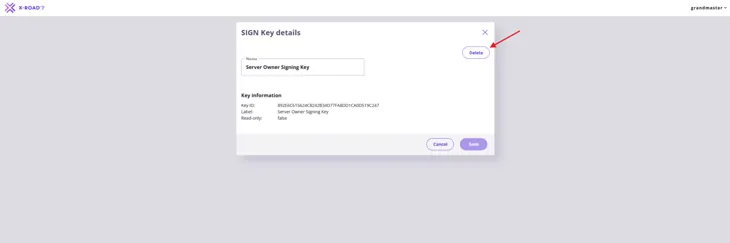
7. Confirm deletion by selecting Yes.

8. Next, remove the authentication certificate. First, unregister the certificate, then delete it. Start by selecting the authentication certificate to remove.
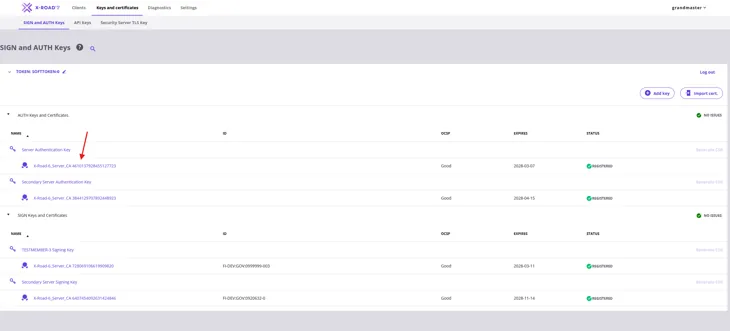
9. Make sure that the correct certificate is selected and start unregistration by selecting Unregister.
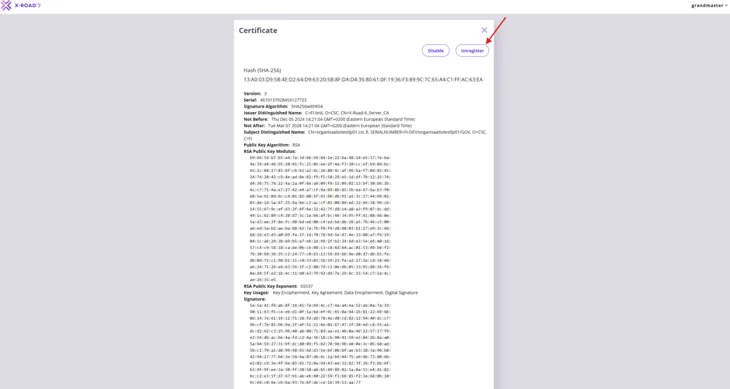
10. Confirm unregistration by selecting Yes.
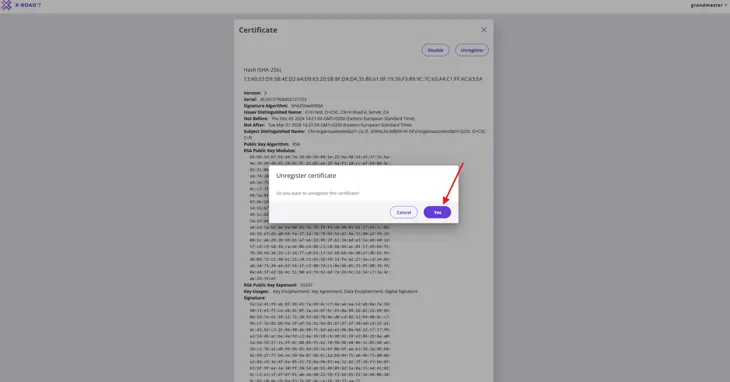
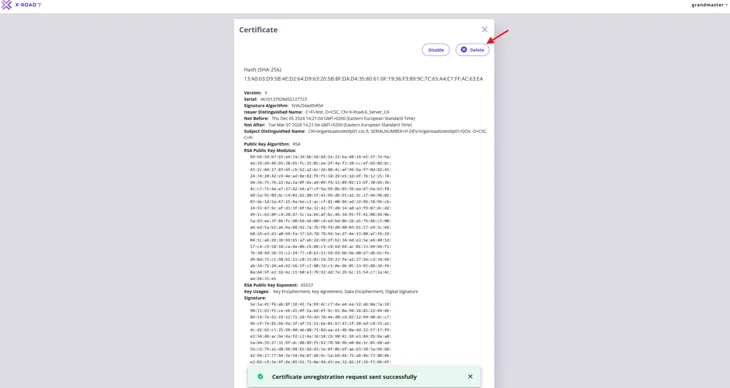
11. A message will appear: "Certification unregistration request sent successfully." Delete the authentication certificate by selecting Delete.
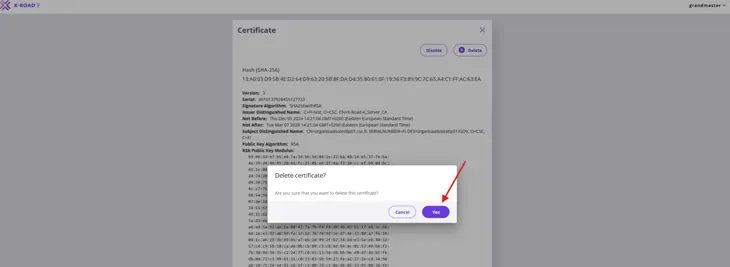
12. Confirm deletion by selecting Yes.
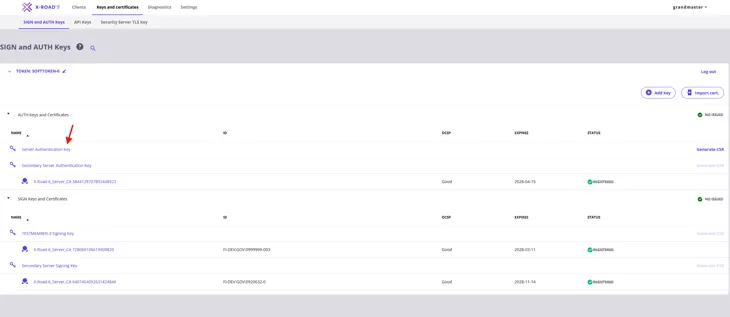
13. Next, remove the authentication key. Start by selecting the correct key.
14. Make sure that the correct key is selected and start removal by selecting Delete.

15. Confirm deletion by selecting Yes.

16. Now only valid keys and certificates are shown in the certificate listing.
Removing certificates when using a version older than X-Road 7.4
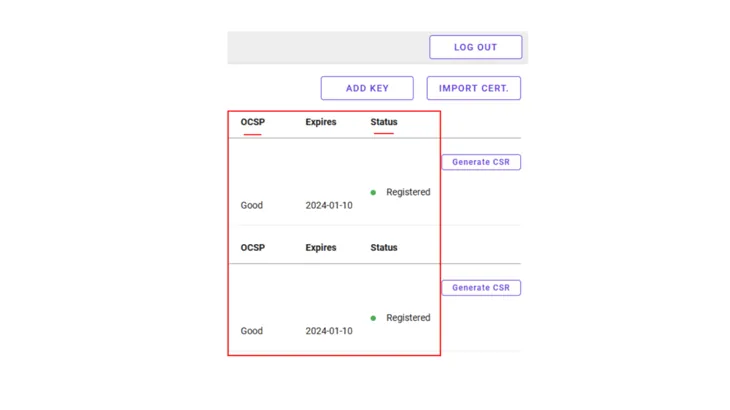
1. Delete the old certificates only when the OCSP response status of the new certificates is Good and the Status column displays Registered.
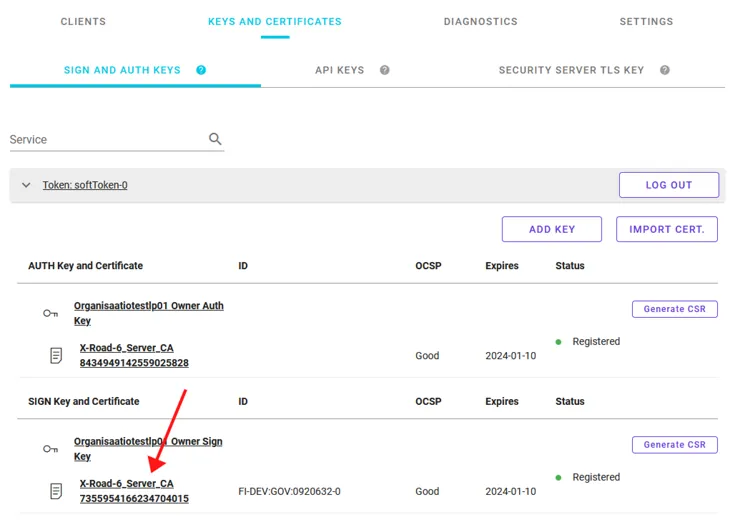
2. Select the signing certificate that you would like to delete by clicking its underlined ID.
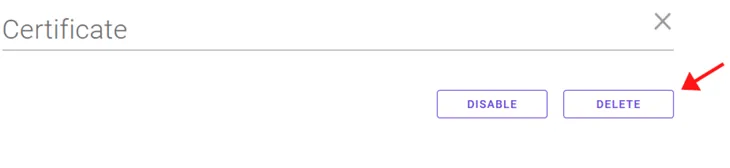
3. Make sure that you are deleting the right certificate and click Delete to confirm the deletion. The deleted signing certificate will now disappear from the certificate list.
4. Select the underlined ID of the old authentication certificate to delete it.
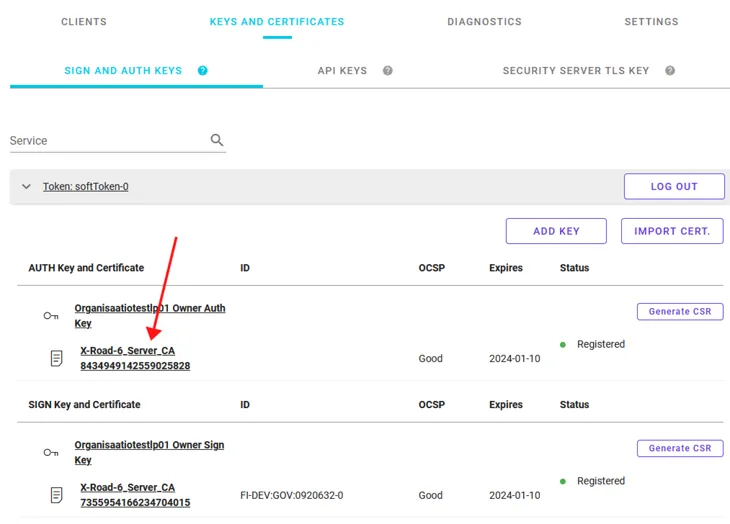
5. Make sure that you are deleting the right certificate and select Unregister.
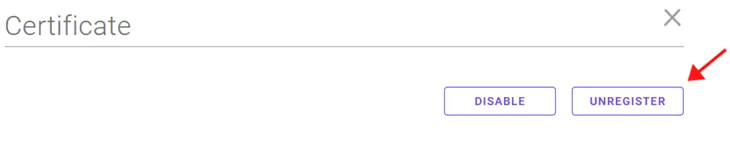
6. Delete the authentication certificate with Unregister status from the certificate list by selecting again its underlined ID and selecting Delete.