
5. Proceed to the production environment
After this section you have
- prepared to deploy the new security server
- gotten installation instructions for the production environment after approval of the user permit application
- opened the firewalls
- installed the security server software
- configured the security server
- added a subsystem to the security server
- connected the information system to the security server
- added your service to your security server
- deployed the adapter service if necessary
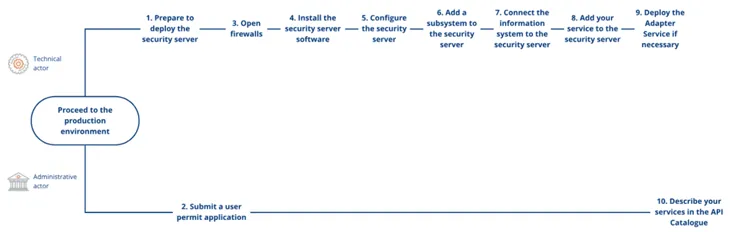
Joining the production environment takes place largely in the same way as joining the test environment. Proceeding to the production environment consists of sending a user permit application and of a technical onboarding process, which your organisation can outsource to the technical solution provider of its choice.
You will need a new security server for the production environment. We recommend that the technical implementation of your production environment corresponds with the test environment, for example, the security server should be implemented in the same way in both environments. Do not remove your security server or services from the test environment. If you encounter problems with transitioning to the production environment, you can compare the implementation with the implementation of the test environment and possibly determine the cause of the problem in this way.
You can proceed to the production environment once:
- the administrative contact person has submitted a user permit application to the production environment,
- you have successfully joined the Data Exchange Layer test environment and
- you have tested that your services work in the test environment without issues.
This section briefly describes the following steps required to join the production environment.
- Steps 2 and 10 are the responsibility of the administrative contact person. The remaining steps belong to the technical onboarding process.
- If you use a shared security server, you can skip step 1 and steps 3–5.
- Prepare to deploy the security server.
- The administrative contact person submits a user permit application for the production environment
- Open firewalls according to the instructions that you previously received.
- Install the security server software. The instructions for installing the security server depend on your server’s operating system. After this, the platform server will become the security server, which you can use to connect your information system to the Data Exchange Layer.
- Configure the security server. The security server can be configured programmatically or manually.
- Add a subsystem to the security server. The subsystem will function as an interface to the Data Exchange Layer for retrieving and sharing information.
- Connect the information system to the security server. In this way the information is transferred from your information systems to the Data Exchange Layer and vice versa.
- If you plan to provide services to other organisations in the Data Exchange Layer, add your service to the security server. The services will be added to one of the previously added subsystems.
- If you plan to provide services to other organisations in the Data Exchange Layer, deploy the adapter service if necessary. You will need an adapter service if you provide SOAP services through the Data Exchange Layer that are not tailored to the requirements of the Data Exchange Layer.
- Administrative contact person describes the organisation and the possible services in the API Catalogue
1. Prepare to deploy the security server
You will need a separate security server for each environment. Therefore, begin transitioning to the production environment by preparing to deploy a new security server solution. We recommend that you use the same kind of security server in both the test and production environments.
For more detailed instructions on selecting a security server solution, see phase 2.
2. The administrative contact person submits a user permit application for the production environment
Once the security server solution has been selected and the host server has been installed and configured, the administrative contact person sends an electronic user permit application to the Digital and Population Data Services Agency. Make sure that the following things are done correctly before submitting the application:
1. The security server is named correctly.
2. The security server has RHEL or Ubuntu operating system installed, or if using a containerised security server, a Linux platform with Docker installed.
- Read more about installing an RHEL security server
- Read more about installing an Ubuntu security server
- Read more about the containerised security server option
Once the user permit application has been approved, the technical contact person specified in the application will receive an email with installation instructions for joining the production environment. The instructions are sent from palveluvayla@palveluvayla.fiOpens in a new window.. You will receive the following materials by e-mail:
- Configuration Anchor
- Instructions for opening firewalls
- Instructions for installing the security server software (links to these can also be found in these instructions): Licenses of the application components
3. Open firewalls
Based on the instructions you have received, open the necessary ports from your server to form needed connections to the Data Exchange Layer. It is extremely important with regard to information security that only certain ports are open in the correct direction.
Due to information security, Data Exchange Layer’s Maintenance team will send you instructions by e-mail on how to open ports. The instructions are sent to the technical contact person indicated in the user permit application.
- If necessary, you can get instructions for opening firewalls even before you submit your user permit application. In this case, contact the Data Exchange Layer Maintenance team at palveluvayla@palveluvayla.fiOpens in a new window..
Ports to be opened:
- My Computer Port 22 → Own Security Server, Own information System [Command Line Connection]
- My Computer Port 4000 → Own Security Server [Graphical Management Interface]
- Own information ← ports 80, 443 → Own Security Server [For retrieving information from the Data Exchange Layer]
- Own Security Server Ports 80, 4001 → Central Server Global Conf [central server connection 1]
- Own Security Server ← ports 5500, 5577 → Central Server Global Conf [central server connection 2]
- Own Security Server port 80 → Central Server Global Conf [for federation, central server connection 3]
- Own Security Server port 80 OCSP → Service [OCSP connection]
- Own Security Server ports 80, 443 → Timestamping Service [TSA connection]
- Own Security Server ports 5500, 5577 → Target Network Security Server [for the getRandom Test Service]
4. Install the security server software
Follow the instructions to install the security server software on your host server. The host server will then become the security server that you connect to the Data Exchange Layer test environment. The installation steps will depend in part on the operating system in use.
See the links below for instructions.
- Installing the operating system server software on a RHEL operating system
- Installing the operating system server software on a Ubuntu operating system
- Installation instructions for a Docker containerised security server
5. Configure the security server
After installation, you will have a security server that is ready to be configured. You have received an environment-specific configuration file, known as a Configuration Anchor, by email from Data Exchange Layer support.
Follow the instructions on the page Connecting a security server to the test or production environment and proceed as instructed. Make sure you follow the instructions for the production environment (FI).
Once this step has been completed, your security server has been successfully connected to the Data Exchange Layer production environment.
Changing the memory settings of the security server
If necessary, change the memory settings of your security server. The memory settings depend on the amount of central memory of the security server host. There are certain recommended memory settings for the security server and you can read about those in the separate support article.
6. Add a subsystem to the security server
Add at least one subsystem to the security server. The subsystem enables data exchange and will function as an interface to the Data Exchange Layer for retrieving and sharing information.
We recommend using information system-specific subsystems.
- An information system refers to your organisation’s information system to which the security server is connected, so that the information contained in the information system can be retrieved and shared in the Data Exchange Layer. In some cases, several information systems that form a single logical entity can also use the same subsystem to call services.
If you are a service provider on the Data Exchange Layer, we recommend that you have one subsystem for each service you provide.
Add a subsystem through the security server management interface. Follow the instructions given in the Connecting a new subsystem to a security server and deleting a subsystem from a security server support article.
7. Connect the information system to the security server
Once the security server and subsystems are in place, connect your information system to the security server. The connection between the information system and the security server is established through the subsystem that you created on the security server.
Perform the connection in the security server administration interface. Follow the instructions on the page Connecting an information system to a security server.
8. If you plan to provide services to other organisations in the Data Exchange Layer, add your services to the security server
If you are a service provider, you must add your services to the security server. Once you have added a subsystem to the security server and it has been registered, add a new service under that subsystem through the security server administration interface.
Follow the instructions on the page Adding a new service to the security server.
9. If you plan to provide services to other organisations in the Data Exchange Layer, deploy the adapter service if necessary
Assess whether your organisation needs an adapter service before starting the deployment process.
You need an adapter service
- whenever you provide SOAP services that have not been created separately for the Data Exchange Layer
- when your organisation does not use REST interfaces for data transfer
In practice, you do not need an adapter service when the SOAP service has been designed and implemented specifically for the Data Exchange Layer and your organisation uses REST interfaces for data transfer. Read more in the Data Exchange Layer's adapter service support article. See the support article for information on different implementation options. Read more on them and implement the adapter service in the most appropriate way for you.
10. Administrative contact person describes the organisation and the possible services in the API Catalogue
Finally, the administrative contact person describes the details of your organisation and services in the API CatalogueOpens in a new window..
You can now start the production use of the Data Exchange Layer.
Also remember to take care of technical and administrative maintenance, such as keeping your organisation's information and the security server up to date.