
Connecting an information system to a security server
This article describes how an organisation can connect its own information system to the security server.
The TLS client certificates described in this article are internal certificates created by the organisation itself. Applying for these certificates is not related to applying for Data Exchange Layer certificates in DVV’s e-services.
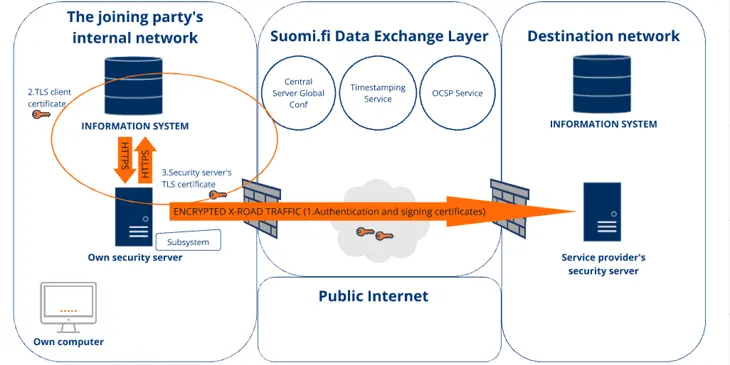
The service client (the organisation’s own information system) can be connected to the security server through a subsystem created on the security server. The subsystem identifies the service client in the Data Exchange Layer. It is used to call services and to configure access rights of services connected to the Data Exchange Layer. The service client is connected to the subsystem by adding a TLS client certificate to the security server.
A subsystem can be service client-specific, or alternatively, several service clients that form a single logical package can use the same subsystem to call services. In practice, however, organisations should always use service client-specific subsystems so that service access rights can be configured for the correct subsystems.
Make sure you have added a subsystem to the security server before you connect your information system. You can find more instructions on adding a subsystem in its own support article.
The following topics are covered in this article:
- Details of the connection settings between the security server and the service client
- Connecting the service client to the security server
- Select the connection type
- Create the TLS client certificate and add it to the security server
- Download the internal certificate of the security server and export it to the service client
- Calling services
- Test the client certificate
Details of the connection settings between the security server and the service client
The service client can call the security server only over the HTTPS protocol by default. Always use the HTTPS protocol between the service client and the security server to ensure that the connection between the service client of your own organisation and the security server is encrypted. When the HTTPS protocol is used, the service client must present the TLS client certificate, which must be added separately to the Internal TLS Certificates list on the security server.
Using the HTTPS protocol and client certificates is mandatory also when the same security server is used by multiple organisations. In such a case, using a client certificate is the only way to prevent the organisations from calling the services of the Data Exchange Layer through each other’s subsystems. All organisations using the same security server use the same call interface and IP address of the security server. This creates a situation in which the organisations would be able to make service calls in the name of another organisation, and no firewall settings could prevent it.
By default, the security server’s own certificate is self-signed. You can change the internal certificate on the Internal TLS Certificate section of Keys and Certificates page. See the instructions on changing the security server certificateOpens in a new window.. Please note that the certificate format must be PEM.
There are two types of internal certificates:
- TLS client certificate: The security server authenticates the service client by means of a certificate. A client certificate is subsystem-specific.
- The security server’s own certificate: The service client authenticates the security server by means of a certificate. You are strongly advised to use the security server’s own certificate if your organisation provides services through the Data Exchange Layer.
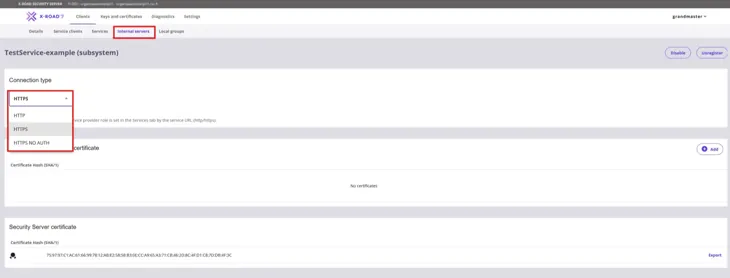
The connection type between the service client and security servers is configured by the ‘Connection type for servers in service consumer role’ setting. The setting can be set to the following values:
- HTTP: The information system can make the call over the HTTP or HTTPS protocol. No client certificate is required. Unencrypted.
- HTTPS: The information system must make the call over the HTTPS protocol. In addition to this, the information system must present a TLS client certificate that is listed in the Internal TLS Certificates section. Encrypted.
- HTTPS NO AUTH: The information system must make the call over the HTTPS protocol. No client certificate is required. Encrypted.
Connecting the service client to the security server
1. Select the connection type (Connection type: HTTPS)
Select HTTPS as the connection type between the service client and the security server.
2. Create the TLS client certificate and add it to the security server
Use the service client to perform steps 1 and 2.
- First enter the following command to create a private key for the service client: openssl genrsa -out clientprivatekey.pem 2048
- Enter the following command to create a self-signed certificate for the key: openssl req -new -x509 -key clientprivatekey.pem -out clientcert.pem -days 365
- Log in to the administration interface of the security server at https://{host}:4000/ (replace {host} with the hostname of the security server of your organisation). After login, you will see a list of the subsystems added to the security server.
- Select from the list the subsystem whose settings you want to edit.
- Click Add to add the client certificate to the security server from Internal Servers tab. After you have added the client certificate to the security server, the Internal TLS Certificates list shows the hash of the certificate.
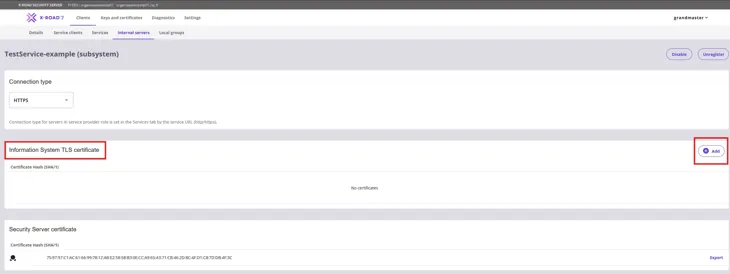
3. Download the internal certificate of the security server and export it to the service client
1. Download the security server’s internal certificate on the Internal Servers tab, under Information System TLS-certificate, and click Export.
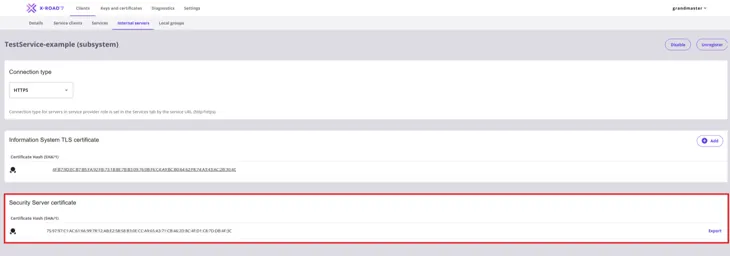
2. Finally, export the security server certificate to the service client.
By default, the telecommunications between the security server and the service client allows TLS 1.2 and the following PFS Cipher Suites:
- TLS_ECDHE_RSA_WITH_AES_128_GCM_SHA256*
- TLS_ECDHE_RSA_WITH_AES_128_CBC_SHA256*
- TLS_ECDHE_RSA_WITH_AES_256_GCM_SHA384*
- TLS_ECDHE_RSA_WITH_AES_256_CBC_SHA384*
- TLS_DHE_RSA_WITH_AES_128_GCM_SHA256
- TLS_DHE_RSA_WITH_AES_128_CBC_SHA256
- TLS_DHE_RSA_WITH_AES_256_CBC_SHA256
- TLS_DHE_RSA_WITH_AES_256_GCM_SHA384.
(*) not enabled in RHEL if OpenJDK is used
4. Calling services
Testing SOAP messages
The format of the client interface through which the security server calls the services of the Data Exchange Layer is https://{host}/. The {host} part of the address must be replaced with the hostname of the organisation’s own security server. In the requests sent to the security server, the value of the Content-Type header must be text/xml and the HTTP method must be POST.
Address of the security server: https://{host}/
Method: POST
Content-Type: text/xml
NOTE: Using IP addresses in the calls is not recommended, since it causes problems with the certificates. The problems occur if the hostname used in the call to the security server does not correspond to the hostname stated in the certificate of the security server.
Testing REST services
You can test REST services using the rest-test/random or rest-test/hello services.
rest-test/random service
- does not contain call parameters
- in its response, the service returns a random integral number between 0 and 100
rest-test/hello service
- a name value can be given as a query parameter to the rest-test/hello service
- in its response, the service returns the greeting assigned to the name given as the name parameter value
For more detailed testing instructions, see the article Data Exchange Layer test services.
5. Test the client certificate
The use of the client certificate can be easily tested by calling the getRandom test service with the Curl application. Use the service client to perform steps 1 and 2.
- Call the getRandom test service of the development environment (see Data Exchange Layer getRandom call messageOpens in a new window.) with the subsystem under which you added the client certificate: curl -E ./clientcert.pem --key ./clientprivatekey.pem -k -d @getRandom.xml --header "Content-Type: text/xml" -X POST https://{host}/
- Also try to call the test service of the development environment without the private key and certificate that you created. To do this, enter the following command: curl -k -d @getRandom.xml --header "Content-Type: text/xml" -X POST https://{host}/
The Curl command uses the k optionOpens in a new window.. In such cases, the certificate of the called service will not be verified.
The result should be the following error message:
Server.ClientProxy.SslAuthenticationFailedClient (SUBSYSTEM:FI-DEV/GOV/0245437-2/TestClient) specifies SSLAUTH but did not supply SSL certificateYou can also follow NIIS' instructions for connecting a client system to the security serverOpens in a new window. and configuring firewallOpens in a new window..