Instruction on what to do if you encounter problems opening the user interface in hardened environments
This article describes how to work around the issue with opening security server’s administration interface in hardened environments.
Description of the problem
If the security server’s administration interface does not open properly, an error message is displayed (see Figure 1).
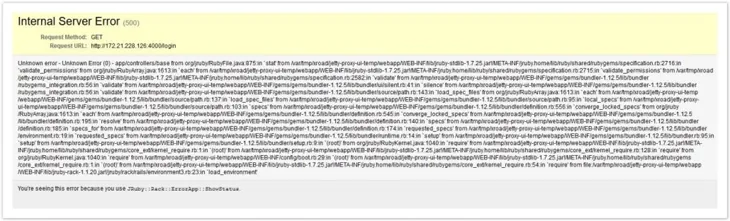
The error message occurs because the xroad-jetty process writes temporary files during the run by default under the /tmp directory, which is flagged as noexec. To avoid the need to touch the noexec configurations, a directory with no noexec option must be created in the file system for temporary files.
Workaround
In hardened environments, execs are usually not allowed for /tmp directories. The following describes how to work around the problem in this case.
1. Create a folder tmp under, for example, the /home/xroad directory and give it read, write, and run permissions as an xroad user as follows:
cd /home/xroad/
mkdir tmp
chown xroad:xroad tmp
chmod 700 tmp
2. Go to the directory /etc/xroad/services and copy the jetty parameters below in the local-conf file. They contain a new storage directory (-Djava.io.tmpdir) for jetty’s temporary files:
JETTY_PARAMS=" $JETTY_PARAMS -Djava.io.tmpdir=/home/xroad/tmp/ "3. Stop and restart the jetty process with the following command:
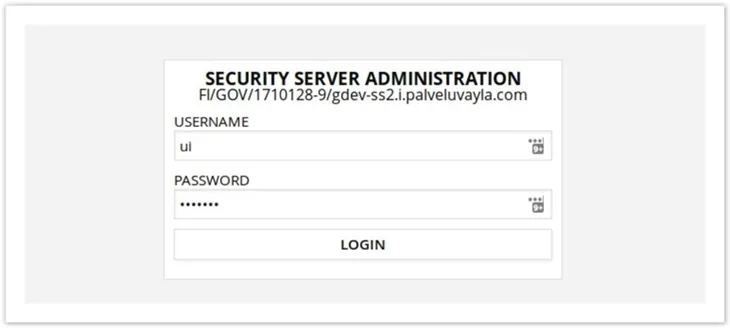
service xroad-jetty restartYou should now be able to access the administration interface’s login page (see Figure 2).